> For the complete documentation index, see [llms.txt](https://build.yourownrobot.ai/llms.txt). Markdown versions of documentation pages are available by appending `.md` to page URLs; this page is available as [Markdown](https://build.yourownrobot.ai/4.-wiring.md).
# 4. Wiring and Final Assembly
We now proceed to the critical wiring stage of YOR. This section covers the primary power and communication connections required for system operation.
The block diagram below provides a high-level overview of YOR’s wiring architecture, illustrating how power is distributed and how the major subsystems are connected.
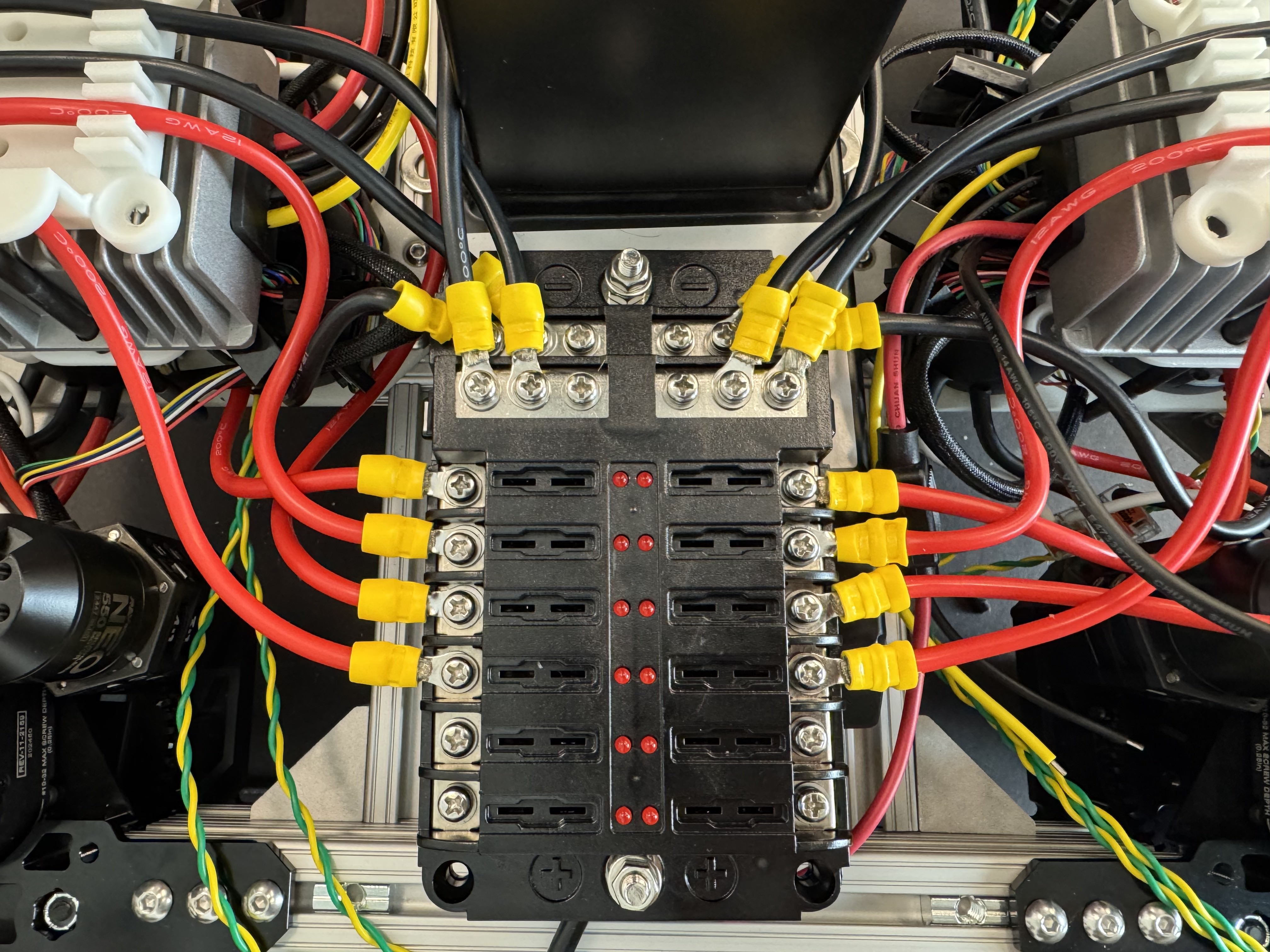
First, connect the motor drive input power wires. Connect the positive leads to the fused power rail and the negative leads to the common ground rail.
Ensure that all eight motor drive inputs are properly connected before proceeding.
Note: The buck converter connections to the fuse box are not shown in this image.
Next, connect the output wires (yellow and black) from the 12V 30A DC-DC converter to the positive and negative terminals of the fuse box, respectively.
Verify correct polarity before securing the connections.
Connect the emergency stop switch to the base using the normally closed contact.
Splice the positive rail from the Anderson connector and route it through the normally closed terminals of the emergency stop switch. From the switch, connect the positive output to the terminal block.
Connect the negative rail from the Anderson connector directly to the terminal block.
Connect the positive input terminals of all four buck converters together on the positive rail, and connect the negative input terminals together on the negative rail.
Before making these connections, ensure that there is no electrical connection between the positive and negative rails.
**Note: Verify using a multimeter that there is no continuity between the positive and negative sides before proceeding. This step is critical.**
Now install the battery, behind the lift. Put a white foam sheet that comes in the battery box to secure the battery.
Now attach the 4.75-inch vertical aluminum extrusions at the center of each side of the base frame, using the extrusion nuts and L-brackets installed in [Base Assembly Step 1](https://build.yourownrobot.ai/pages/eY9g7BiKVwKLXDxhtCot#step-1.-setting-up-the-base-extrusions).
Slide two M6 extrusion nuts into each 11.5-inch aluminum extrusion. Using the 90-degree extrusion connectors, mount the 17-inch and 11.5-inch extrusions to complete the base assembly at the locations indicated by the red arrows in the reference image below.
Attach the Raspberry Pi mount to the front vertical 4.75-inch aluminum extrusion above the fuse box using M5 screws and extrusion nuts.
Now we move one to wiring up the lift. Cut off the connector from the cable coming out of the lift, then strip back the outer black sheathing. The cable should contain six individual wires inside.
{% columns %}
{% column %}
{% endcolumn %}
{% column valign="middle" %}
{% endcolumn %}
{% endcolumns %}
Connect the output of the 24V, 6A DC-DC converter to the input terminals of the lift motor controller (BTS7960), connecting positive to Battery+ and negative to Battery−.
Then connect the lift motor wiring as follows:
* Lift motor+ (blue wire) → Motor+ on the BTS7960
* Lift motor− (brown wire) → Motor− on the BTS7960
Connect the lift motor wiring to the motor driver and the Raspberry Pi Pico using male-to-female and female-to-female jumper cable.
Connect the lift encoder and motor driver wiring as follows:
Encoder connections: (Lift to Pico)
* Encoder A (Orange) → GPIO 27
* Encoder B (White) → GPIO 28
* Encoder V+ (Red) → 3.3 V
* Encoder GND (Black) → GND
* Place a 1 µF capacitor across Encoder V+ and Encoder GND
BTS7960 motor driver logic connections: (Lift Motor Driver to Pico)
* RPWM → GPIO 2
* LPWM → GPIO 3
* R\_EN → GPIO 4
* L\_EN → GPIO 5
* VCC → 3.3 V
* GND → GND
After completing the wiring, attach the Raspberry Pi Pico and the lift motor controller using double-sided tape, as shown in the reference image.
Extend the output wires from the 24V, 6A DC-DC converter using two inline Wago connectors. Ensure the extended wires are at least 1.2 meters long to allow routing to the arm power system.
Attach two 3-port Wago connectors at the opposite end of the extended wires.
Also, add two sets of positive and negative wires from the fuse box, each at least 1.2 meters long, to supply power to the Orin and the U2D2. Terminate these wires with barrel jacks, one for the Orin and one for the U2D2 power board.
Ensure that none of the output wires from the buck converters are left exposed or hanging loose, except for the 5V, 5A Type-C output used to power the Raspberry Pi.
Put eight 10 Amps fuse in for all the swerve motor drivers and two 5 amps fuse in for the Orin and the U2D2.
### Assigning CAN ID's
We will now proceed to a critical step: updating the firmware on the swerve drives and assigning the appropriate CAN IDs. Update the firmware on all swerve motors to version 25.X.X, then assign a unique CAN ID to each motor.
The front of the robot is defined as the side where the fuse box is located. Based on this reference frame:
* Front Left drive motor → CAN ID 1
* Front Left steering motor → CAN ID 5
* Front Right drive motor → CAN ID 4
* Front Right steering motor → CAN ID 8
* Rear Left drive motor → CAN ID 2
* Rear Left steering motor → CAN ID 6
* Rear Right drive motor → CAN ID 3
* Rear Right steering motor → CAN ID 7
To complete this step, you will need a Windows laptop with the [REV Hardware Client](https://docs.revrobotics.com/rev-hardware-client) installed, Wago inline connectors, type-C cable and two 120 Ω resistors.
On the laptop, load the motor configurations from the hardware Google Drive. There are two configuration files in .json format: one for the drive motor and one for the steering motor. Place these files in the following directory:
```
C:\Users\$User$\AppData\Roaming\REV Hardware Client\plugins\SparkMax\device-configurations
```
Each motor driver has four CAN wires: two yellow and two green. The yellow wires correspond to CAN High, and the green wires correspond to CAN Low.
CAN communication requires two 120 Ω termination resistors placed at the terminal ends of the CAN bus. For this procedure, install both resistors across one set of yellow (CAN High) and green (CAN Low) wires for the motor being configured.
Connect the motor driver to the laptop using a USB Type-C cable. Open the REV Hardware Client; the motor driver should appear with CAN ID 0. Load the appropriate configuration file based on the motor type (drive or steering), then update the firmware.
**Note: This process is delicate. Ensure all wire connections are stable and secure, especially during the firmware update.**
.jpg?alt=media)

.jpg?alt=media)
.jpg?alt=media)


.jpg?alt=media)